To search for text You can use the 'Finder'. The finder is a class which contains several properties to adjust how finding works. It is also able to find using a wildcard, but the found text always has to be in one paragraph.
Overview TWPTextFinder:
ds
Method Clear - resets the attributes
Method DropMarkerAtFoundPosition
This function drops a cursor marker, see DropMarker. The optional parameter offset will be added to the 'position in paragraph'.
Example - extract text in brackets [ ]:
var startid, endid : Integer;
with WPRichText1.Finder do
begin
ToStart;
while true do
begin
if not Next('[') then break;
startid := DropMarkerAtFoundPosition(1);
if not WPRichText1.Finder.Next(']') then break;
endid := DropMarkerAtFoundPosition(0);
WPRichText1.TextCursor.SelectMarker(startid, endid);
ShowMessage(WPRichText1.AsANSIString('ANSI', true));
WPRichText1.TextCursor.CollectAllMarker;
end;
end;
Method FindAgain - uses the last search text
Method MoveToFoundPositionEnd - moves cursor
Method MoveToFoundPositionStart - moves cursor
Method Next - searches a text - returns TRUE if successful.
Method Prev - searches a text backwards - returns TRUE if successful.
Method ReplaceAll - replaces text
Method ReplaceAllW - replaces text using unicode strings
Method SelectText - selects the text which was found
Method SetFoundImage - replaces the found text with an image
Property Position - current position where the search starts.
Method ToEnd - current position - goto end
Method ToStart - current position - goto start
Property CaseSensitive - true or false
Property DontIgnoreObjects - true or false (new in WPTools 8)
This property is false by default. Unless true objects such as merge field markers will be ignored. If you use the finder to find tokens in the text and work with the "FontPosition" please set Finder.DontIgnoreObjects := true.
Property CharAttr - If attributes have been defined in this property the attributes of the text which is found must contain this attributes. Please make sure you clear this property with CharAttr.Clear after your code has been processed!
Property EndAtSpace
This property restricts the wildcard search to stop when the next space or object is found. Also see EndAtWord.
This example creates hyperlinks for all texts which start with http://:
with WPRichText1.Finder do
begin
ToStart;
EndAtSpace := TRUE;
while Next('http://*') do
begin
SelectText;
WPRichText1.InputHyperlink(FoundText);
end;
end;
Property EndAtWord
This property restricts the wildcard search to stop when the next word delimiter is found.
Property Found
This property is true after the Next found the text. It is not update by ReplaceAll. The method ToStart resets this value to FALSE.
Property FoundLength - length of the found text
Property FoundParagraph - the paragraph wher the text was found
Property FoundPosInPar - the position where the text was found in 'FoundParagraph'
Property FoundPosition - The absolute character positiuon of the found text. Can be used to initialize the property WPRichText.CPPosition. Better use MoveToFoundPositionStart.
Property FoundText - Reads and replaces the found text with new text. (Dont' forget WPRichText.DelayedReformat).
Please note that it is not possible to insert new paragraphs using this property. If you need to insert paragraphs or formatted text use SelectText and assign the new text to TWPRichText.SelectionAsString.
Property FoundAttr
Reads and changes the attributes of the found text..
Property WholeWord - if true the found text must be within white spaces
Property WildCard - the wild card character allowed in the search string, for example '*'
Example: Replace the placeholder |NAME| with data using a bold font:
WPRichText1.Finder.ToStart;
while WPRichText1.Finder.Next('|NAME|') do
begin
WPRichText1.Finder.FoundAttr.IncludeStyle(afsBold);
WPRichText1.Finder.FoundText := 'Julian Ziersch';
end;
WPRichText1.DelayedReformat;
Example: Convert Hyperlink:
The "Finder" demo project shows how to create hyperlinks and how to replace colored words. It also includes some demo code to change the attribute of text depending on their current attributes - not using the finder but the 'CurrentCharAttr' interface.
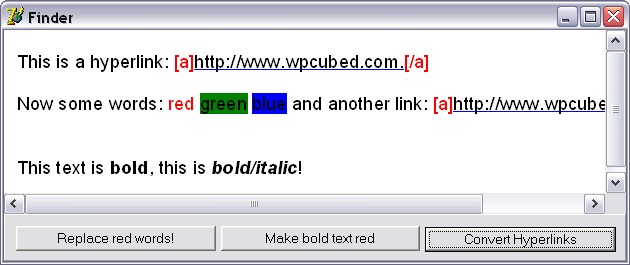
(Note: The display of the hyperlink objects has been enabled in the property FormatOptions)
with WPRichText1.Finder do
begin
ToStart;
EndAtSpace := TRUE;
while Next('http://*') do
begin
SelectText;
WPRichText1.InputHyperlink(FoundText);
end;
EndAtSpace := FALSE;
end;
WPRichText1.HideSelection;
Example: Replace red words
var Finder: TWPTextFinder;
begin
Finder := WPRichText1.Finder;
Finder.Clear;
Finder.ToStart;
Finder.CharAttr.SetColor(clRed);
Finder.EndAtWord := TRUE; // "WholeWord" does not work
Finder.WildCard := '*';
while Finder.Next('*') do
begin
Finder.FoundText := 'Test';
Finder.FoundAttr.SetColor(clBlack);
end;
Finder.CharAttr.Clear;
WPRichText1.Refresh;
end;
Replace Fields
If you have {fields} in the text which should be replaced with data, we recommend to use the MailMerge functionality. Use the function ReplaceTokens to create the fields first.
If you dont want to use mail merge this code can be used to insert loaded RTF data at the positions marke by the tokens:
Example:
var s : String;
a : Integer;
begin
WPRichTExt1.Finder.ToStart;
if WPRichTExt1.Finder.Next('{*}') then
begin
WPRichTExt1.Finder.SelectText;
// Do not select the start, it contains the attribute
WPRichTExt1.TextCursor.SelectionShiftStart(1);
WPRichTExt1.ClearSelection(true);
// Jump over one char backwards
WPRichTExt1.CPMoveBack;
// Read attribute at cursor position
WPRichTExt1.GetCharAttr;
// Delete one character
WPRichTExt1.InputString(#127);
// Record the current attribute plus the default attribute
s := WPRichTExt1.DefaultAttr.AGetWPSS(false, false)
+ WPRichTExt1.WritingAttr.AGetWPSS(false, false);
//store the current position
a := WPRichText1.CPPosition;
// and load the text
WPRichTExt1.LoadFromFile('inserted.rtf', false);
// Select the text
WPRichText1.SetSelPosLen(a, WPRichText1.CPPosition-a);
// and apply the stored attributes
WPRichTExt1.SelectedTextAttr.ASetWPSS(s);
end;
end;
If you need to locate a paragraph quickly which contains a certain text or token you can use a loop over the paragraphs (see below) and the compare functions provided by the TParagraph class:
Checks if this paragraph contains a certain text.
function HasText(const s: AnsiString; AlsoCheckChildren: Boolean = TRUE;
CaseSensitive: Boolean = FALSE): Boolean;
Checks if this paragraph contains a certain text.
function HasTextW(w: WideString; AlsoCheckChildren: Boolean = TRUE;
IgnoreCase: Boolean = FALSE): Boolean;
Checks if this paragraph contains a certain text. Now also optionally also one wildcard can be used and characters can be skipped at the beginning.
function QuickFind(w: WideString; CompareAsLowercase: Boolean = FALSE;
StartPos: Integer = 0): Integer; overload;
function QuickFind(w: WideString; var len : Integer;
CompareAsLowercase: Boolean = FALSE; StartPos: Integer = 0; WildChar : Char = #0): Integer; overload;
Checks if this paragraph starts with a certain text.
function StartWithW(const s: WideString): Boolean;
Checks if this paragraph starts with a certain text.
function StartWith(s: AnsiString; CaseSensitive: Boolean = FALSE): Boolean;
This is the loop:
par := WPRichText1.FirstPar;
while par<>nil do
begin
// Do something with par
// Next paragraph
par := par.next;
end;