Textboxes make it possible to have text elements at any position on the page. The contents can be formatted text and also images.
Textboxes can be placed in the header of the document to have the same text elements on all pages where this header is used. They require an anchor, this is a TWPTextObj element in a paragraph of the owning text.
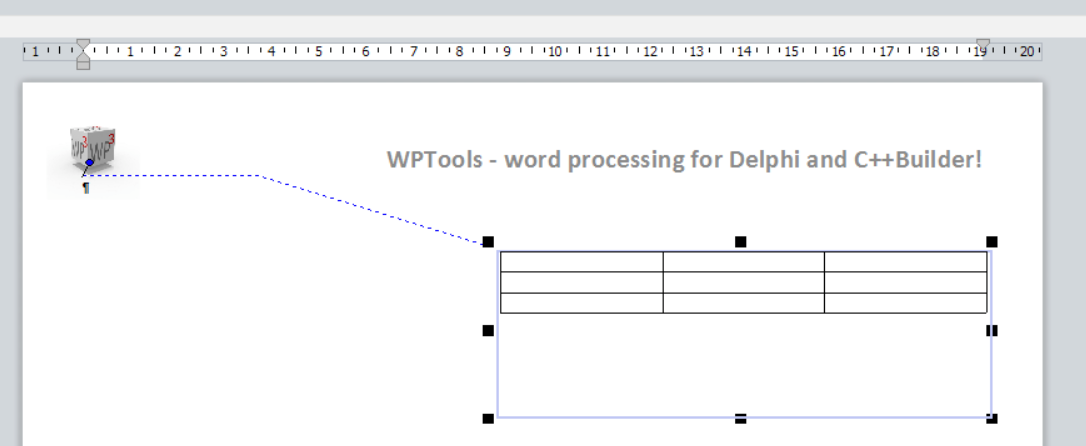
This screenshot shows a text-box with an included table:
This flags may be useful:
wpDetectClickOnObjectsOfOtherLayers - a click on a text box linked by the header is recognized even if the header is not in edit mode.
wpShowImagesLinkedByHeader - text boxes linked by the header are displayed even if the header is not visible.
Example:
WPRichText1.EditOptionsEx2 := WPRichText1.EditOptionsEx2 +
[ wpDetectClickOnObjectsOfOtherLayers];
WPRichText1.ViewOptionsEx := WPRichText1.ViewOptionsEx +
[wpShowImagesLinkedByHeader];