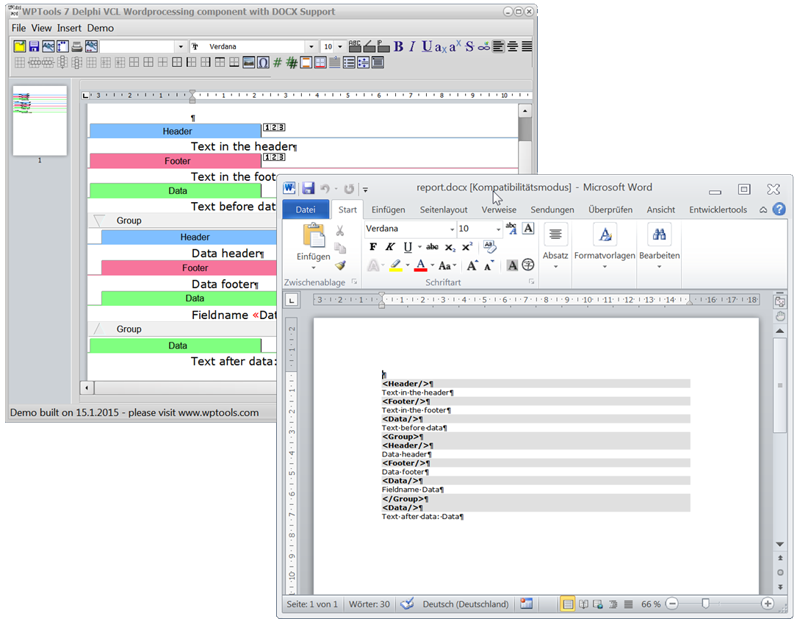
The reporting creates a new text from a template by mixing in data or calculated text.
A template consists of text which is separated into different parts using bands and groups. Unlike groups, bands (data, header or footer) always end with the start of the next band or group. Groups end with the closing of the group - they can also be nested.
Example for a template:
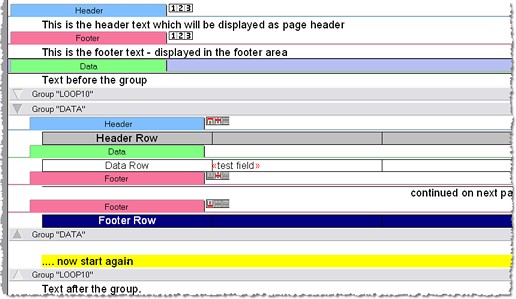
(Hint: You can double-click on the  to collapse any group)
This report is created by this template in our demo application:
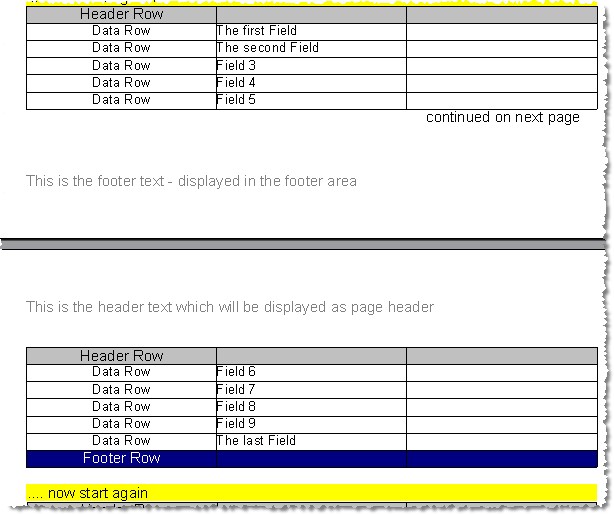
Note that the table uses two footer rows. One is used at the end, the other is used only before a pagebreak. When the created report is saved to RTF MS-Word can use the repeated headers. Unfortunately it does not support repeated footers and hidden rows so both footers will be displayed at the end of the row.
Note: Using the property ColumnWidthSnapValue You can control that the column widths which are very close (max. difference ColumnWidthSnapValue twips) are set to the same value. The default value 15 makes sure that one screen pixel difference does not count. This mode can be deactivated in the property "Options".
If you have long field names and want to avoid word wrap in your template, You can either apply the property WPAT_NoWrap to the cells which should not wrap or you can shorten the field names automatically using MergeText, event OnMaileMergeGetText. You can still show the complete field name in an hover event - please see chapter MailMerge. Note that WPAT_NoWordWrap must be enabled in property RichText.FormatOptionsEx.
Please note that the word wrap is highly influenced by the way the font width is calculated by the screen driver.
The property SuppressAutomaticHeaderFooter can be used to avoid that header and footers which cannot be properly used with MS Word are created.
Please also see the event TWPFormulaInterface.OnTextObjectPaintCalc - it can be used to calculate subtotals for the repeated rows. (See demo TableCalc)
WPReporter includes the band dialog which can be easily used to edit the template:
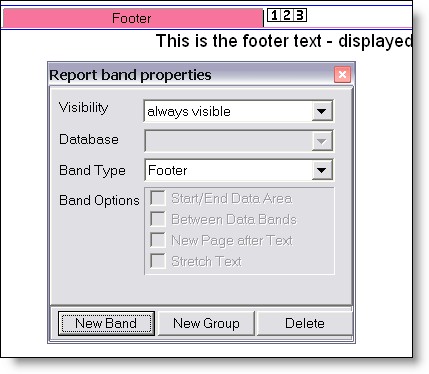
This dialog is displayed by the TWPReportBandsDialog component. Please specify the editor and the SuperMerge component. Then use this code to show the dialog: WPReportBandsDialog1.Execute;
The buttons "New Band" and "New Group" open popup menus to create new control bands. For groups you can choose where the group should be created - ie. if the current group should be surrounded by the new one. Please note that while a group or band is selected, pressing ENTER creates a new line at the beginning of the contained text. If a group is selected pressing INSERT creates a new line AFTER the group. Tip: When text and regular bands (no groups) are selected you can place this text into a new group using "create at the current position".
(Hint: After a band has been added you can use the "Band Type" dialog to change its type. Please also activate one of the check boxes.)
The SuperMerge component (TWPSuperMerge) actually does all the work. It combines the text from the source component with the data with the data which was inserted using the OnMailMergeGextText event and sends it to the destination, another memo component of the class TWPRichText.
To attach the two TWPRichText to the TWPSuperMerge please use one line of code to call the procedure SetSourceDest. (In WPTools 4 there were 2 properties for this task - they had to be removed due to the different architecture of the new WPReporter. With WPTools the RTFData bay be shared between editors - this is why an assignment through the DFM file would not work)
procedure TForm1.FormCreate(Sender: TObject);
begin
WPSuperMerge1.SetSourceDest(
SourceText.Memo.RTFData,
DestText.Memo.RTFData
);
end;
If you only want and editor for report templates, the second "Dest" parameter may be also passed as 'nil'. Alternatively also SetSource may be called. If you do not assign a RTFData the bands will be displayed as gray bars since no WPSuperMerge is active.
During the creation of the document (inside the destination control) the processing of each band can be switched off and each group can be repeated as often as required.
After one paragraph of the template has been copied to the destination control the fields in this paragraphs are replaced by data values. This work is performed by the mail merge function which can be also used without WPReporter. The mail merge function triggers the OnMailMergeGetText event for each field which is found in the text. Inside the event the data can be assigned to the object which is used to transfer the data, an image can be inserted or the text format can be changed.
For WPTools 8.23 and later DOCX import and export is available. We took care that the field and band information is properly saves as Bands so it is not destroyed when the template file is edited in MS Word. Only the non-common RTFVariables and special user properties for paragraphs cannot be saved since DocX does not allow simple embedding of custom data.