TextDynamic can work in several different ways. The mode is selected by using the method WPDLLInt1.SetEditorMode(). One Control can host two editors at once - we know no other word processing control which does this, so why does TextDynamic?
Sometimes you want to see two areas of the same text at the same time. For example the start and the end of a longer text. You can easily jump between those areas and edit both. This is called SplitScreen. For this mode you need two editors which edit the same text.
Sometimes you also need to work with texts which share properties. In our control such a case is the report template and the result - both share the same paragraph styles. Or mailmerge - the original form and the long text which consists of multiple appended letters. Also in this case it is a big advantage if the text styles are shared. If the user changes the text style in the source editor the destination editor will be also be updated.
The method SetEditorMode() requires 4 parameters.
1. Parameter: "Mode" (.NET: enum EditorMode)
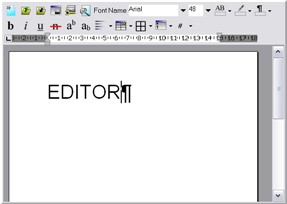
a) wpmodSingleEditor = 0: Simple editor
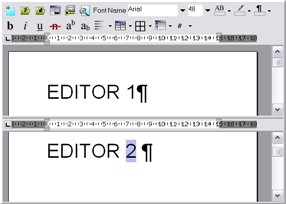
c) wpmodDoubleEditor = 1: two Editors - working with 2 different texts. Both text are using the same paragraph styles. This mode is required if you use the TextDynamic reporting feature. In one editor the report template would be displayed, the other displays the created report. Usually the DLL works with the upper, Editor 1. To switch to Editor 2 the method SelectEditor can be used. Most of the events pass a parameter 'editor' which is 1 for the upper, 2 for the lower editor.
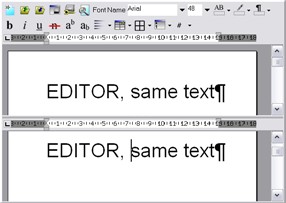
b) wpmodSplitEditor = 2: Editor with split screen - the same text is edited in both windows. But each window can use a different zoom level and layout mode. Both windows can show a different position in the text.Most of the events pass a parameter 'editor' which is 1 for the upper, 2 for the lower editor.
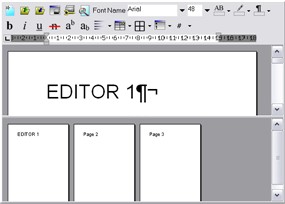
d) wpmodSplitThumbnails = 3: Editor and Preview/Thumbnail display. This mode is almost identical to the 'split screen' mode. The lower editor is readonly though.
2. Parameter: "ModeX" (.NET: enum: EditorXMode)
In addition to the general operation modes certain special features can be activated using property ModeX. This following flags are possible:
wpxtraToolbar = 1; - Select the 16x16 toolbar
wpxtraToolbarLG = 2 - Select 24x24 Toolbar
wpxtraSpellcheck = 4 - Activate the Spellcheck
wpxtraTables = 8 - Activate support for tables (in toolbar)
wpxtraPDFExport = 16 - Activate the wPDF PDF Export
wpxtraReporting =32 - Activate the WPReporter in EditorA (cannot be used in 'Split' mode!)
Please note that setting a flag will have no effect if you do not have the license to use i.e. the PDF export.
3. Parameter: "Gui1" (.NET: enum EditorGUI)
This parameter selects the graphical user interface elements used by the editor 1.
wpguiRuler = 2, // Select a ruler
wpguiVertScrollBar=4, // Select the vertical scrollbar
wpguiHorzScrollBar=8, // Select the horizontal Scrollbar
wpguiVertRuler =16, // Select Vertical Ruler
wpguiGutter =32, // Select Gutter (pagno)
wpguiPanelV1 =64, // Select the panel in top right corner
wpguiPanelV2 =128,// NAVIGATION: Select the panel in the bottom rigth corner
wpguiPanelH1 =256,// VIEW: Select the panel in the bottom left corner
If the flag wpguiDontSet (1) was used this parameter will be ignored. This is useful if you call SetEditorMode later to modify an editor.
4. Parameter : "Gui2"
This parameter selects the GUI elements of the second, the lower editor. Of course this makes only sense if a second editor/viewer was selected using "Mode".
Example - C#:
WPDLLInt1.SetEditorMode(
EditorMode.wpmodSingleEditor,
EditorXMode.wpmodexToolbarLG,
// EditorGUI.wpguiGutter +
EditorGUI.wpguiHorzScrollBar |
EditorGUI.wpguiPanelH1|
// EditorGUI.pguiPanelH2 |
EditorGUI.wpguiPanelV1|
EditorGUI.wpguiPanelV2 |
EditorGUI.wpguiRuler |
EditorGUI.wpguiVertRuler |
EditorGUI.wpguiVertScrollBar
, EditorGUI.wpguiDontSet);
Example:
This image shows initialization code written in C# (VS 2005). We had simply dropped a WPDLLInt control on the form and changed its name to "WPDLLInt1"
using System.Text; using System.Windows.Forms; using WPDynamic; // reference to the TextDynamic wrapper
namespace WindowsApplication1 { public partial class Form1 : Form { public Form1() { WPDLLInt.SetDLLName("{hkcu}Software\\WPCubed\\TextDynamic\\path");
InitializeComponent(); // 1.) Set the Editor Mode WPDLLInt1.SetEditorMode ( EditorMode.wpmodDoubleEditor, EditorXMode.wpmodexToolbarLG, // = ModeX EditorGUI.wpguiHorzScrollBar | // = GUI of upper Editor EditorGUI.wpguiPanelH1 | EditorGUI.wpguiPanelV1 | EditorGUI.wpguiPanelV2 | EditorGUI.wpguiRuler | EditorGUI.wpguiVertRuler | EditorGUI.wpguiVertScrollBar , EditorGUI.wpguiVertScrollBar // = GUI of lower Editor ); // 2.) Load the PCC file WPDLLInt1.SetLayout("..\\buttons.pcc", ""); |
When you develop in VisualBasic 6 a good place to do the initialization is the event Form.OnLoad.