TextDynamic supports different "themes" for the dialogs, toolbar and the panels.
They can be globally updated using the Command method.
This command ids are defined:
WPDLL_COM_DialogBackground = 9501
Activate a brushed metal background for the dialogs.
"Standard" 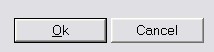 "Metal"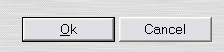
You can also load a background image for the tiling
wpdllInt1.Command(9501,1,"c:\\someimage.bmp");
// You can use the token {dll} in the filename
// to specify the path relatively to the engine DLL.
WPDLL_COM_ToolbarDesign = 9502
Select the design style for all toolbars which do not use the <design> tag in the XML.
This modes are supported:
1 = Titanium (default)

2 = Brushed Metal - use Command(9501, 1) to make the dialogs use this background

3 = Shaded. Use Command 9503 and 9504 to change colors)

4 = Simple gray

WPDLL_COM_ToolBarColorFrom = 9503
Change the start color for the gradient fill used by mode 3. Default is $FFFFFF
WPDLL_COM_ToolBarColorTo = 9504
Change the end color for the gradient fill used by mode 3. Default is $FE9696
C# Example:
wpdllInt1.Command(9502,3,0);
wpdllInt1.Command(9503, wpdllInt1.ToRGB(Color.LightBlue),0);
wpdllInt1.Command(9504, wpdllInt1.ToRGB(Color.Blue),0);

WPDLL_COM_SetHorzBack = 9505
Load a bitmap which is stretched on the background of horizontal toolbars. You can realize individual shading using such a bitmap.
WPDLL_COM_SetVertBack = 9506
Load a bitmap which is stretched on the background of vertical toolbars