The different layout modes are probably one of the most exciting feature in WPTools Version 9. You will hardly find a component which offers this kind of versatility in a text editing tool.
Different layout modes are mainly activated in property LayoutMode
- but also the properties PageColumns, AutoZoom, Zooming, ViewOptions and OnPageGapGetText are important for the display of the text.
If you are using our multi-view technology (multiple editors show one text), each editor can use different settings for the mentioned properties. So it is possible that one editor displays the thumbnails while a different editor shows the text in 'normal' mode!
Changing the layout modes is also extremely fast, usually the already formatted pages are rearranged on the virtual desktop!
Please note that the TWPPreview component also inherits from the usual editor component. So it has the same properties. But it also introduces the property SinglePageMode. If this property is true, unlike the default display of all pages in a row, only one row of pages will be displayed. BTW - if you are using the TWPPreview or TWPPreviewDlg you are already using the multiview technology.
Possible values of the property LayoutModes are:
wplayNormal : Only show the text area without margins - do not paint background color.
wpWordWrapView : Display like wplayNormal - used when the word wrap is set to the editor box.
wplayShowManualPageBreaks - like wpNormal but draws a dashed line for page breaks
wplayPageGap - display the text similar to wplayNormal with a bar iin between
wplayExtendedPageGap - works like wplayPageGap but does not suppress the left and right margin.
wplayPageGap example:
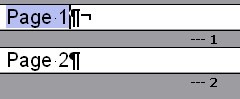
The display of the page numbers ("--- 1") is activated using the ViewOption wpShowPageNRinGap. You can use the event OnGetPageGapText to display a different text.
wplayShrinkedLayout - show PageLayout without header and footer (reduces page height!)
wplayLayout - show PageLayout but do not paint header and footer.
wplayFullLayout - show PageLayout with header and footer.
prodelphi.de
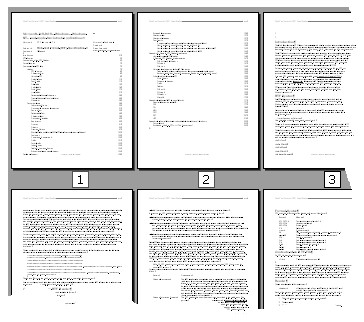
wpThumbNailView - display thumb nails of the pages, optionally with display of the page numbers in little boxes. This is activated by ViewOption wpShowPageNRinGap.
Hint: If you need to show the editor, despite being in LayoutMode<>wplayNormal, without the page frame and background you can set this properties:
WPRichText1.ColorDesktop := WPRichText1.PaperColor;
WPRichText1.ViewOptionsEx := WPRichText1.ViewOptionsEx - [wpPaintThemedBackground];
WPRichText1.ViewOptions := WPRichText1.ViewOptions + [wpDontPaintPageFrame];
Property AutoZoom
The following values are possible:
wpAutoZoomOff - use the value of property Zooming to change the aspect ratio of the text display
wpAutoZoomWidth - automatically adjust the aspect ratio to make room for the complete width of the page
wpAutoZoomFullPage - automatically adjust the aspect ratio to make room for the complete size of the page
wpAutoZoomAdjustColumnCount - automatically adjust the property PageColumns to show as many pages side by side as fit into the window. Usually the property Zooming should be set to a small value, for example 30.
wpAutoZoomAsManyAsPossibleInRow - show as many pages side by side but allow a different count of pages each row. You can see the effect in the lower editor in the section demo. This mode should be also combined with a small zooming value.
new: wpAutoZoomHorizontalTiles: You can use wpAutoZoomHorizontalTiles to display the pages in a horizontal scrolling window.
Please note that the property CurrentZooming can be read to get the current aspect ratio as a floating point multiplicator.