1) create a new project
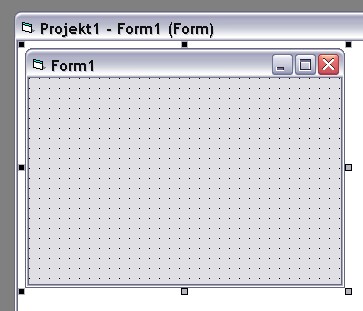
2) add TextDynamic to the component palette
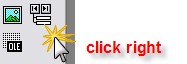 select "Components..." and then TextDynamic:
3) click on the added component and draw a rectangle on the form to create a control

4) now initialize the InitScriptXML property by clicking right on the control and select "Poperties" from the context menu. The popup for click on the button [>>] and select "Create Template" from the list. Close the form.
5) now add code to resize the control dynamically with the parent form
Private Sub Form_Resize()
WPDLLInt1.Left = 0
WPDLLInt1.Top = 0
WPDLLInt1.Width = Me.ScaleWidth
WPDLLInt1.Height = Me.ScaleHeight
End Sub
Start the application and you should get
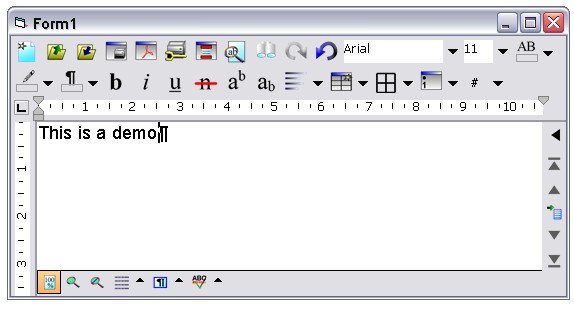
6) now please add code to tell the control the destination of the engine DLL. This is not required in the demo since it is loaded from the registry, but for an application you distribute you need to modify the property DLLName.
7) When you are using the licensed version you need to set your license information using the method EditorStart.
Private Sub Form_Load()
WPDLLInt1.EditorStart( licensename, licensekey )
End Sub
8) You can modify the property InitScripXML to change layout of the editor or to load a different PCC file. Instead of using the property InitScriptXML use the method SetLayout and SetEditorMode in the event Form.OnLoad.