Very often you will have to create a table, for example a calculation.
This can be done best using the TableAdd procedure. This procedure requires only a few parameters, such as row cont and column count but can also work with a callback procedure which is executed for each created cell.
function TWPCustomRtfEdit.TableAdd(
ColCount, RowCount: Integer;
Options: TWPTableAddOptions = [];
StyleForNewCells: TWPTextStyle = nil;
CallBackForText: TWPTableAddCellEvent = nil;
StyleForHeader: TWPTextStyle = nil;
StyleForFooter: TWPTextStyle = nil;
WidthSourceRow : TParagraph = nil;
RowGroupLevel : Integer = 0
): TParagraph;
! |
Especially for the use with callback procedures a new variant of TableAdd has been added to WPTools 9.
It accepts an anonymous procedure which makes it very easy to work with local variables and allows very compact code.
function TWPCustomRtfEdit.TableAdd(ColCount, RowCount: Integer; CallBackProcedure : TWPTableAddCellCallback; Options: TWPTableAddOptions=[]): TParagraph;
Example: var num : Integer; begin num := 1; WPRichText1.TableAdd(10,10,procedure(RowNr, ColNr: Integer; par: TParagraph) begin par.SetText(IntToStr(num)); inc(num); end,[wptblActivateBorders]); WPRichText1.ReformatAll(false, true); end; |
Since the callback procedure receives information about the current column and row number it is easy to apply special properties to certain cells or preset the contents of the created cell.
Note: You can also use the Rows[r].Cols[c] arrays as described in the second part of this chapter but then you have to take care that you work with the correct row index. Using this arrays is probably also a little slower.
Please see reference for supported WPAT_ codes.
TableAdd also expects an option parameter which can have this flags:
wptblActivateBorders - create a table with borders
wptblCreateHeaderRow - create a header row which is repeated on each page. RowNr will be -1 in callback
wptblCreateFooterRow - create a header row which is repeated on each page. RowNr will be -2 in callback
wptblAllowNestedTables - create a table in a cell
wptblPlaceCursorInLastCell - place the cursor in the last cell for subsequent text adding
wptblAppendTableAtEnd - the result of TableAdd will be the new table and not the first cell
wptblDontApplyWritingAttr - do not use the current writing attributes
wptblRowsUseSameWidthPC - All rows use the same width as used in previous row
wptblContinueRowSpan - Continue rowspan cells found in previous row
wptblReuseCurrentParIfEmpty - Create the table instead of the current paragraph
// internally used: create a dynamic grid which is connected to a dataset.
// The ID must be set in the returned TParagraph objec.Name!
// (The Result of TableAdd() will be the new table and not the first cell)
wptblCreateDynamicGrid
wptblPutCursorAfterTable -After the creation the cursor will be put in the next paragraph (which can be created)
wptblCreateCollapsibleRows- Add WPAT_PAR_GROUPLEVEL to all rows which are not header or footer
Create a table object which is not stored in the document but an independent object
wptblCreateTableAsFreeParagraph - the table TParagraph will be returned.
wptblCreateIndentColumn - Create a first indent cell in all rows, also header and footer!
wptblActivateBordersInIndentCol - wptblActivateBorders also applies to indent column
wptblCreateSubHeader - Create a second table header row
wptblCreateSubHeader2 - Create a third table header row
wptblCreateSummaryFooter - Create a second footer row
wptblCreateSummaryFooter2 - Create a third footer row
wptblReturnCreatedTableObject - the table TParagraph will be returned.
1) Use TableAdd() with a callback function
1.1) This code will create a table with 5 rows:
procedure TForm1.AddCell(RowNr, ColNr: Integer; par: TParagraph);
begin
par.SetText(Format('%d %d',[RowNr, ColNr]));
if RowNr=1 then
par.ASetColor(WPAT_FGColor, clGreen) else
begin
if (RowNr-1) and 1=1 then
par.ASetColor(WPAT_FGColor,clRed) // uneven
else par.ASetColor(WPAT_FGColor,clBlue); // even
end;
end;
procedure TForm1.Button1Click(Sender: TObject);
begin
WPRichText1.TableAdd(3,5,[wptblActivateBorders],nil, AddCell);
WPRichText1.ReformatAll();
end;
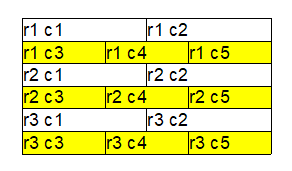
1.2) It is also possible to create the following columns in a new row
In the callback add the flag wpstLevelEnd to par.State:
procedure TForm1.AddCell(RowNr, ColNr: Integer; par: TParagraph);
begin
par.SetText(Format('r%d c%d',[RowNr, ColNr]));
if ColNr=2 then par.State := par.State + [wpstLevelEnd];
if ColNr>2 then par.ASetColor(WPAT_FGColor, clYellow);
end;
procedure TForm1.Button1Click(Sender: TObject);
begin
WPRichText1.TableAdd(5,3,
[wptblActivateBorders,wptblReturnCreatedTableObject],
nil, AddCell)
.ASet(WPAT_BoxWidth, 3000);
WPRichText1.ReformatAll();
end;
1.3) This code will append a new table to the end of the text:
WPRichText1.TableAdd(7,7,
[wptblActivateBorders,wptblAppendTableAtEnd],nil, InvoiceDemoCell);
This is a screen shot of the created table:
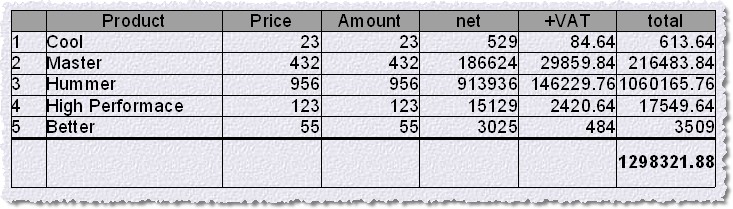
The callback procedure InvoiceDemoCell is implemented like this
procedure TWPTableCalc.InvoiceDemoCell(RowNr, ColNr: Integer; par: TParagraph);
const prods : array[1..5] of string =
( 'Cool', 'Master', 'Hummer', 'High Performace', 'Better' );
begin
// Set the widths of the rows
case ColNr of
1 : par.ASet(WPAT_COLWIDTH_PC, 500); // % * 100 !
2 : par.ASet(WPAT_COLWIDTH_PC, 2500);
else
begin
par.ASet(WPAT_COLWIDTH_PC, 1400);
par.ASet(WPAT_Alignment, Integer(paralRight));
end;
end;
// Set the text and the cell names and commands
if RowNr=1 then // Header Row ------------------------------
begin
case ColNr of
1 : ;
2 : par.SetText('Product');
3 : par.SetText('Price');
4 : par.SetText('Amount');
5 : par.SetText('net');
6 : par.SetText('+VAT');
7 : par.SetText('total');
end;
par.ASetColor(WPAT_FGColor, $A0A0A0);
par.ASet(WPAT_ParProtected,1);
par.ASet(WPAT_Alignment, Integer(paralCenter));
end else
if RowNr=7 then // Footer Row ------------------------------
begin
par.ADel(WPAT_BorderWidth); // Delete the border width for ALL linese
par.ASet(WPAT_BorderWidthT, 40); // ANd set the top line to 40 twips
par.ASetAdd( WPAT_BorderFlags, WPBRD_DRAW_Top); // Add a flag!
// par.ParentRow.ASet(WPAT_BoxMinHeight, WPCentimeterToTwips(1.5));
par.ASet(WPAT_SpaceBefore, WPCentimeterToTwips(0.3));
par.ASet(WPAT_SpaceAfter, WPCentimeterToTwips(0.3));
par.ASet(WPAT_ParProtected,1);
case ColNr of
1 : ;
2 : ;
3 : ;
4 : ;
5 : begin
par.ASetStringProp(WPAT_PAR_COMMAND, 'PAR_NET');
end;
6 : begin
par.ASetStringProp(WPAT_PAR_COMMAND, 'PAR_VAT');
end;
7 : begin
par.ASetStringProp(WPAT_PAR_COMMAND, 'PAR_TOTAL');
par.ASetCharStyle(true, WPSTY_BOLD);
end;
end;
end else // Data Rows ------------------------------
begin
case ColNr of
1 : begin
par.SetText(IntToStr(RowNr-1));
par.ASet(WPAT_ParProtected,1);
end;
2 : par.SetText(prods[RowNr-1]);
3 : par.SetText(IntToStr(Random(1000)+1));
4 : par.SetText(IntToStr(Random(3)+1));
5 : begin
par.ASetStringProp(WPAT_PAR_COMMAND, 'left(2)*left(1)');
par.ASetStringProp(WPAT_PAR_NAME, 'PAR_NET');
par.ASet(WPAT_ParProtected,1);par
end;
6 : begin
par.ASetStringProp(WPAT_PAR_COMMAND, 'left(1)*0.16');
par.ASetStringProp(WPAT_PAR_NAME, 'PAR_VAT');
par.ASet(WPAT_ParProtected,1);
end;
7 : begin
par.ASetStringProp(WPAT_PAR_COMMAND, 'left(2)+left(1)');
par.ASetStringProp(WPAT_PAR_NAME, 'PAR_TOTAL');
par.ASet(WPAT_ParProtected,1);
end;
end;
end;
end;
Note: The commands
par.ASetStringProp(WPAT_PAR_COMMAND, 'left(2)+left(1)');
par.ASetStringProp(WPAT_PAR_NAME, 'PAR_TOTAL');
are only usable with WPTools Bundle. They are used to add calculation to a table.
b) Use TableAdd() and the Rows[] and Cols[] arrays
This example appends 2 rows to the current table (a new table is created if necessary) and loads an image in the second cell of the first row.
Screen shot of the created table. (Only the first row is visible.)

procedure TForm1.CreateTableWithImageClick(Sender: TObject);
var tbl: TParagraph;
obj: TWPTextObj;
img: TWPOImage;
imagefilename: string;
rowoffset : Integer;
begin
// Select the image from file or use a local image
imagefilename := '';
if SelectImageFile.Checked then
begin
if OpenPictureDialog1.Execute then
imagefilename := OpenPictureDialog1.FileName
else exit;
end;
// Create the image object
img := TWPOImage.Create(WPRichText1); // uses WPObj_Image
try
if imagefilename = '' then img.Picture.Assign(Image2.Picture)
else img.LoadFromFile(imagefilename);
except
img.Free; // We cannot load this image
raise;
end;
// This code is required if we do *not* use the wptblAppendTableAtEnd option.
// since than an existing table is enlarged
tbl := WPRichText1.Table;
if tbl<>nil then
begin
rowoffset := tbl.RowCount;
WPRichText1.ActiveParagraph := tbl.LastChild.ColFirst;
end
else rowoffset := 0;
// Create the table and after that modify the cells
// makes sure a new table is created at the end!
tbl := WPRichText1.TableAdd(2, 1, [wptblActivateBorders], nil, nil);
// Set text of first column
tbl.Rows[rowoffset+0].Cols[0].SetText(imagefilename);
// Create the TWPTextObj (which is the reference to image)
obj := tbl.Rows[rowoffset+0].Cols[1].AppendNewObject(wpobjImage, false, false, 0);
obj.ObjRef := img;
obj.Frame := [wpframeFine];
// Set the size of the image
obj.Width := img.ContentsWidth * 2;
obj.Height := img.ContentsHeight * 2;
// Empty row, no borders - move cursor to first cell
WPRichText1.ActiveParagraph := tbl.ColFirst;
tbl := WPRichText1.TableAdd(2, 1, [], nil, nil);
WPRichText1.ActiveParagraph := tbl.ColFirst;
// Format and display changed text
WPRichText1.Refresh;
end;
2) Create a table with a header and footer row which are repeated on each page
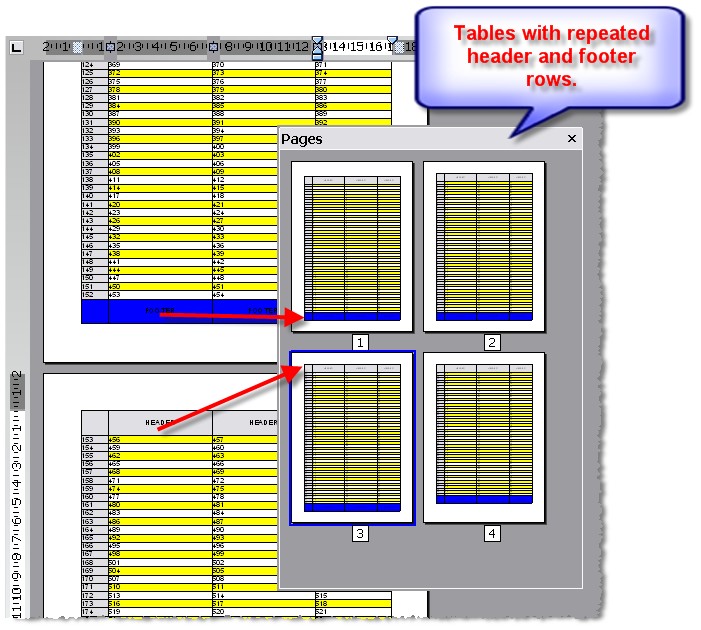
This feature is controlled by the flags paprIsFooter and paprIsHeader in the property TParagraph.par. The property must be set in the row paragraph which is the parent paragraph of a cell. The API TableAdd does this for you.
We suggest to use this feature with the flag wpfDontBreakTableRows in FormatOptions.
In any case please set the property wpDisableSpeedReformat.
Example code:
procedure TForm1.CreateTableCellCallBackHF(RowNr, ColNr: Integer; par: TParagraph);
begin
if RowNr = -1 then // THIS CELL IS IN THE HEADER
begin
par.ASetColor(WPAT_BGColor, clBtnFace);
if ColNr = 1 then par.ASet(WPAT_COLWIDTH, WPCentimeterToTwips(1.5))
else par.SetText('HEADER');
end
else if RowNr = -2 then // THIS CELL IS IN THE FOOTER
begin
par.ASetColor(WPAT_BGColor, clBtnFace);
if ColNr = 1 then par.ASet(WPAT_COLWIDTH, WPCentimeterToTwips(1.5))
else par.SetText('FOOTER');
end else
begin
if (RowNr and 1) = 0 then par.ASetColor(WPAT_BGColor, clYellow);
if ColNr = 1 then
begin
par.ASetColor(WPAT_BGColor, clBtnFace);
par.ASet(WPAT_COLWIDTH, WPCentimeterToTwips(1.5));
par.SetText(IntToStr(RowNr));
end else
begin
par.SetText(IntToStr(FCellNr));
inc(FCellNr);
end;
end;
end;
procedure TForm1.CreateTableWithHeaderFooterClick(Sender: TObject);
begin
WPRichText1.Clear;
FRowCount := 200; // count of rows, excluding header and footer!
WPRichText1.FormatOptions := [wpDisableSpeedReformat, wpfDontBreakTableRows];
WPRichText1.TableAdd(
4, FRowCount,
[wptblActivateBorders,wptblCreateHeaderRow,wptblCreateFooterRow], nil,
CreateTableCellCallBackHF);
WPRichText1.Refresh;
end;