With WPTools you can create extremely compact editor applications which still do not miss any functionality the end user might expect - such as support for headers and footers, WYSIWYG, scaling, tables etc.
When you need a really compact editor we suggest to create objects of the class TWPCustomRtfEdit (defined in unit WPCTRMemo) in code. This way you can also attach two editors to the same TWPRTFDataCollection to create an editor with split screen support.
Our demo uses 4 variables defined inside the form interface:
TWPMiniEd = class(TForm)
...
public
WPRichText1, WPRichText2 : TWPCustomRtfEdit;
RTFData : TWPRTFDataCollection;
RTFDataProps : TWPRTFProps;
end;
You will need to manually add this unit references to "uses":
WPRTEPlatform, WPRTEEdit
We also added a splitter, a graphic popup menu and a main menu. At runtime the demo looks like this screen shot:
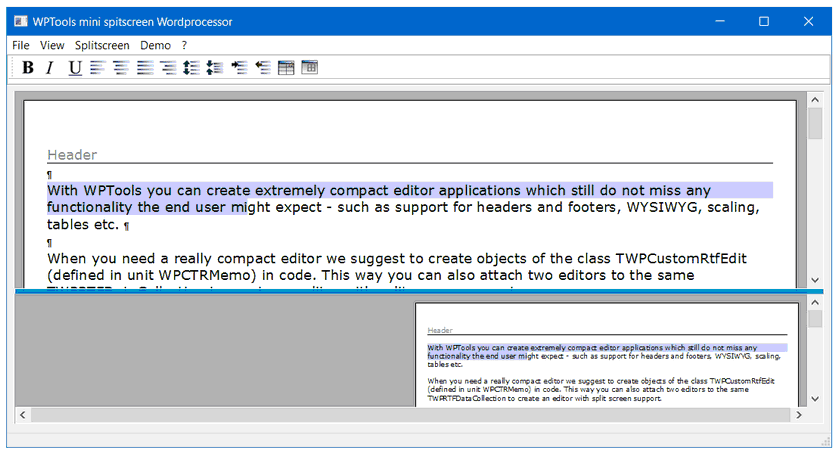
The editor objects are created and connected in code inside of the OnCreate event of the form:
procedure TWPMiniEd.FormCreate(Sender: TObject);
begin
RTFData := TWPRTFDataCollection.Create(TWPRTFDataBlock);
RTFData.FormatOptions := [wpDisableAutosizeTables]; //!!!
RTFDataProps := TWPRTFProps.Create;
RTFData.RTFProps := RTFDataProps;
WPRichText1 := TWPCustomRtfEdit.Create(Self);
WPRichText1.Parent := EditPanel;
WPRichText1.Align := alClient;
WPRichText1.TabStop := FALSE;
WPRichText1.AcceptFiles := TRUE;
WPRichText1.Height := Height div 2;
WPRichText1.Memo.SetRTFDataOrProps(RTFData, nil);
WPRichText1.OnChangeCursorPos := DoChangeCursorPos;
WPRichText1.AcceptFiles := true;
WPRichText1.ViewOptions := [wpShowNL, wpShowCR];
WPRichText2 := TWPCustomRtfEdit.Create(Self);
WPRichText2.Memo.SetRTFDataOrProps(RTFData, nil);
WPRichText2.Parent := EditPanel;
WPRichText2.Align := alBottom;
WPRichText2.Height := Height div 2;
WPRichText2.OnChangeCursorPos := DoChangeCursorPos;
WPRichText2.AcceptFiles := true;
WPRichText2.ViewOptions := [wpShowNL];
If you want to also have a statusbar please place the editors inside of a TPanel.
WPRichText1.Parent := EditPanel;
We now assign the graphic popup menu. This menu is automatically used as contect menu for image objects.
WPRichText1.GraphicPopupMenu := GraphicPopupMenu;
WPRichText2.GraphicPopupMenu := GraphicPopupMenu;
Now we add the text to the body. The HTML format makes it easy to add some formatting.
WPRichText1.AsString := '<div align=left><font face="verdana" size=2>WPTools Demo</font></div>';
We also want to show a header text with page numbering. We also use HTML with the WPTools addition tag <pagenr/>.
WPRichText1.HeaderFooter.Get(wpIsHeader,
wpraOnAllPages).RTFText.AsString :=
'<div align=right><font face="verdana">Page <pagenr/></font></div><hr>';
Since WPTools 9 you can also use this more effective code:
WPRichText1.HeaderFooter.Get(wpIsFooter, wpraOnAllPages).Clear
.SetProperty(WPAT_Alignment,Integer(paralCenter))
.Append(wpoPageNumber)
.Append('/')
.Append(wpoNumPages);
WPRichText1.ReformatAll();
WPRichText2.SetZoomMode(-20);
end;
At last we use the SetZoomMode procedure to select a certain layout and zoom mode. The SetZoomMode makes it easy to modify several properties of the editor all at once. Since it only requires one integer parameter it can be used in menus or actions which are using the 'Tag' property to store the parameter for SetZoomMode.
Note: To make the Mini Editor use the DOC import (based on the MS word converter DLLs which may or may not be installed on the system) you need to add the unit WPWordConv to the uses clause.
Hint: The TWPCustomRtfEdit can also be used in a thread save context, for example to create documents using mailmerge in a thread save context.
In this case call the constructor TWPCustomRtfEdit.CreateDynamic instead of TWPCustomRtfEdit.Create(nil) to create a dynamc text creation engine.
You also need a TWPToolsEnviroment for each n thread!
Enviroment := TWPToolsEnviroment.Create(nil); Enviroment.Assign(GlobalWPToolsCustomEnviroment); RichText.Memo.RTFData.RTFProps.Enviroment := Enviroment;
Please check out the demo "ThreadSave" |